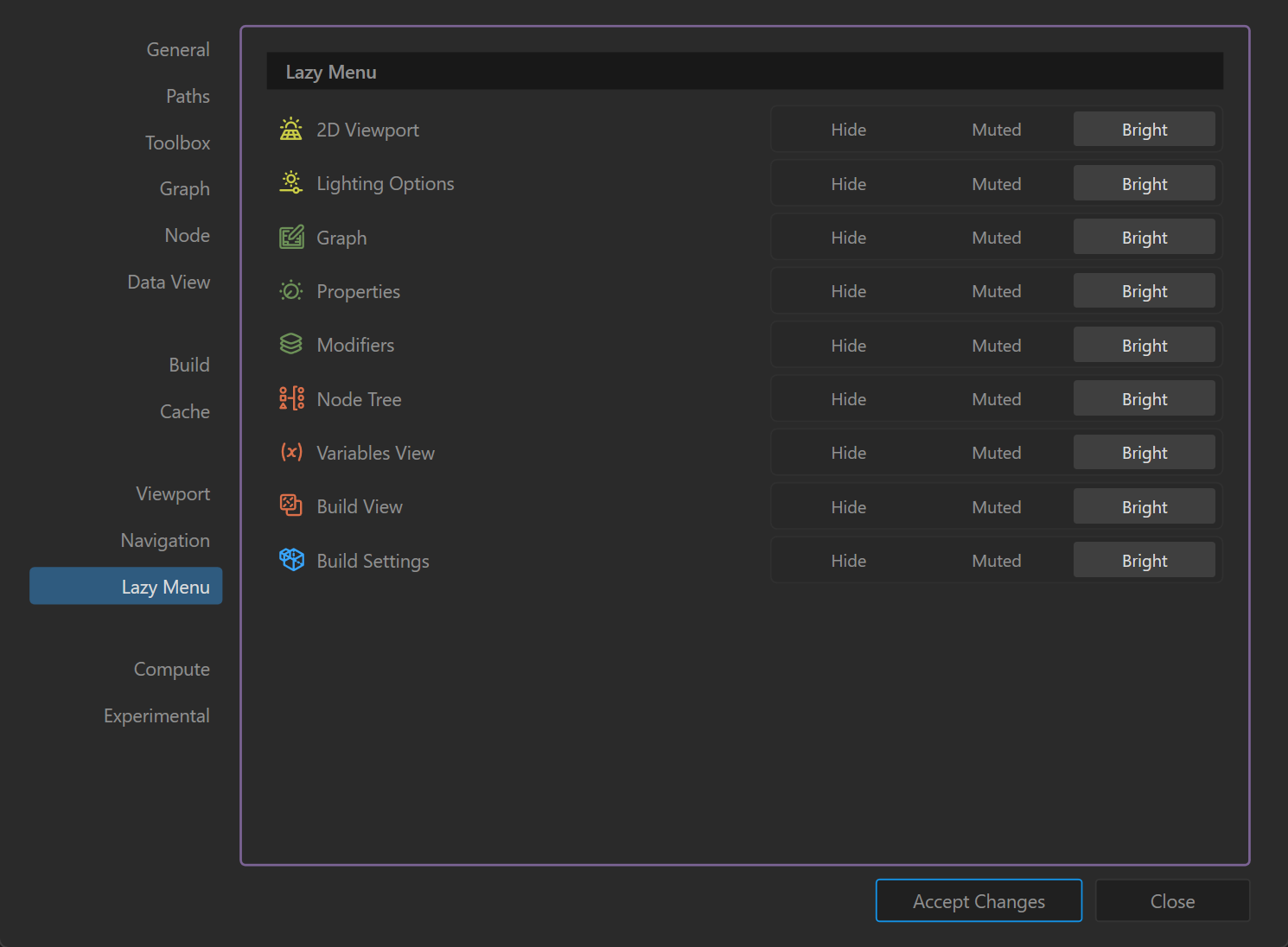
The Lazy Menu tab lets you control the visibility and prominence of key panels and tools in the Lazy Menu interface. This helps declutter the UI or highlight frequently used options for faster access.
Menu Items
Each listed item corresponds to a panel or tool within the Lazy Menu:
- 2D Viewport – Toggles the dedicated 2D terrain preview panel.
- Lighting Options – Controls lighting settings for viewport visualization.
- Graph – Shows or hides the main node graph editor entry.
- Properties – Opens the selected node’s properties editor.
- Modifiers – Quick access to available terrain modifiers.
- Node Tree – Hierarchical view of all nodes in the project.
- Variables View – Displays project-wide variables and their current values.
- Build View – Shows the build process and status window.
- Build Settings – Accesses global build configuration options.
Visibility Modes
Each menu item can be set to one of three modes:
- Hide – Removes the item from the Lazy Menu completely.
- Muted – Shows the item in a dimmed state, indicating it’s less important or rarely used.
- Bright – Highlights the item for quick access (default for most tools).
Usage Tips
- Customize visibility to streamline workflows.
- Hide rarely used tools to avoid clutter.
- Use Muted mode to keep tools accessible but visually de-emphasized.
- Adjusting these settings can help new users focus only on essential panels.
 using AngryMonkey