The Navigation tab allows you to customize how you interact with the 3D viewport using your mouse and keyboard. It provides full control over button assignments, sensitivity, and directional preferences.
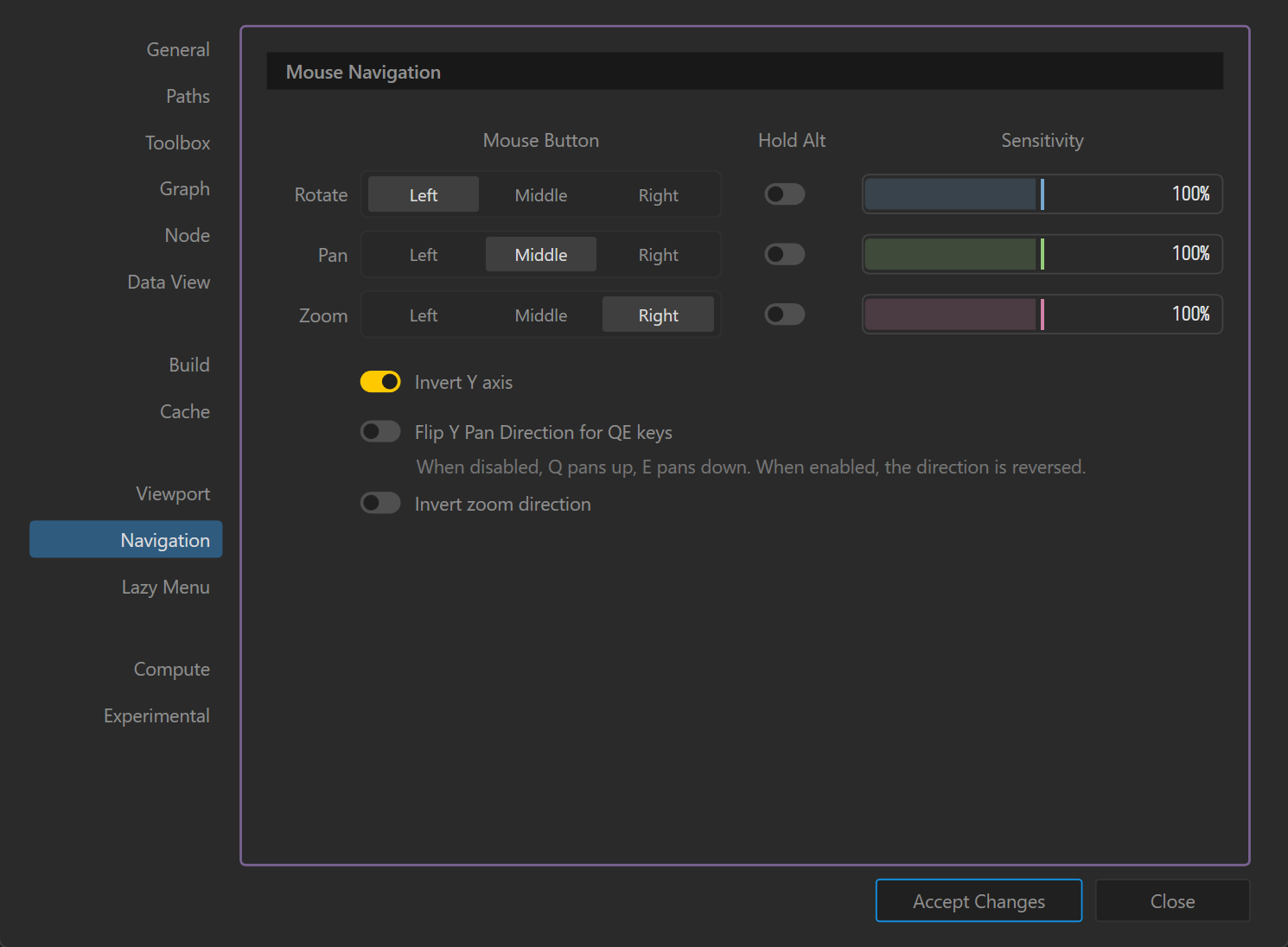
Mouse Navigation
This section defines which mouse button performs each navigation action in the viewport.
- Rotate: Choose Left, Middle, or Right mouse button for rotating the camera.
- Pan: Choose Left, Middle, or Right mouse button for panning the view.
- Zoom: Choose Left, Middle, or Right mouse button for zooming in and out.
Hold Alt
- Optional modifier for each action.
- When enabled, you must hold the Alt key while using the assigned mouse button for that action.
- Useful to prevent accidental navigation when performing other tasks.
Sensitivity
- Adjustable per action (Rotate, Pan, Zoom) with a slider.
- Determines how responsive the navigation feels:
- Lower %: Slower, more precise movement.
- Higher %: Faster, broader movements.
- Default: 100%
Additional Options
- Invert Y Axis (Toggle)
- Reverses the vertical direction of rotation or panning (common in flight sim-style navigation).
- Flip Y Pan Direction for QE Keys (Toggle)
- Changes the behavior of the Q (up) and E (down) panning keys.
- Disabled: Q pans up, E pans down.
- Enabled: Q pans down, E pans up.
- Invert Zoom Direction (Toggle)
- Reverses the direction of zooming:
- Scroll up = zoom out (when enabled).
- Scroll up = zoom in (when disabled, default).
- Reverses the direction of zooming:
Notes
- Settings are fully customizable to match common workflows (e.g., Maya, Blender, 3ds Max).
- Ideal for adapting navigation to personal or industry-standard control schemes.
- Use sensitivity adjustments to fine-tune navigation for precision terrain editing.
 using AngryMonkey