Using Fortress Server Logs
Fortress Server records operational activity (events, actions, warnings, errors, and internal diagnostics) to help administrators troubleshoot issues and to support post-incident review. When contacting QuadSpinner support, include a ZIP of the entire log folder. It significantly reduces turnaround time for diagnosing network, allocation, and configuration problems.
View the Current Log
In the Fortress Console, select Logs from the main menu.
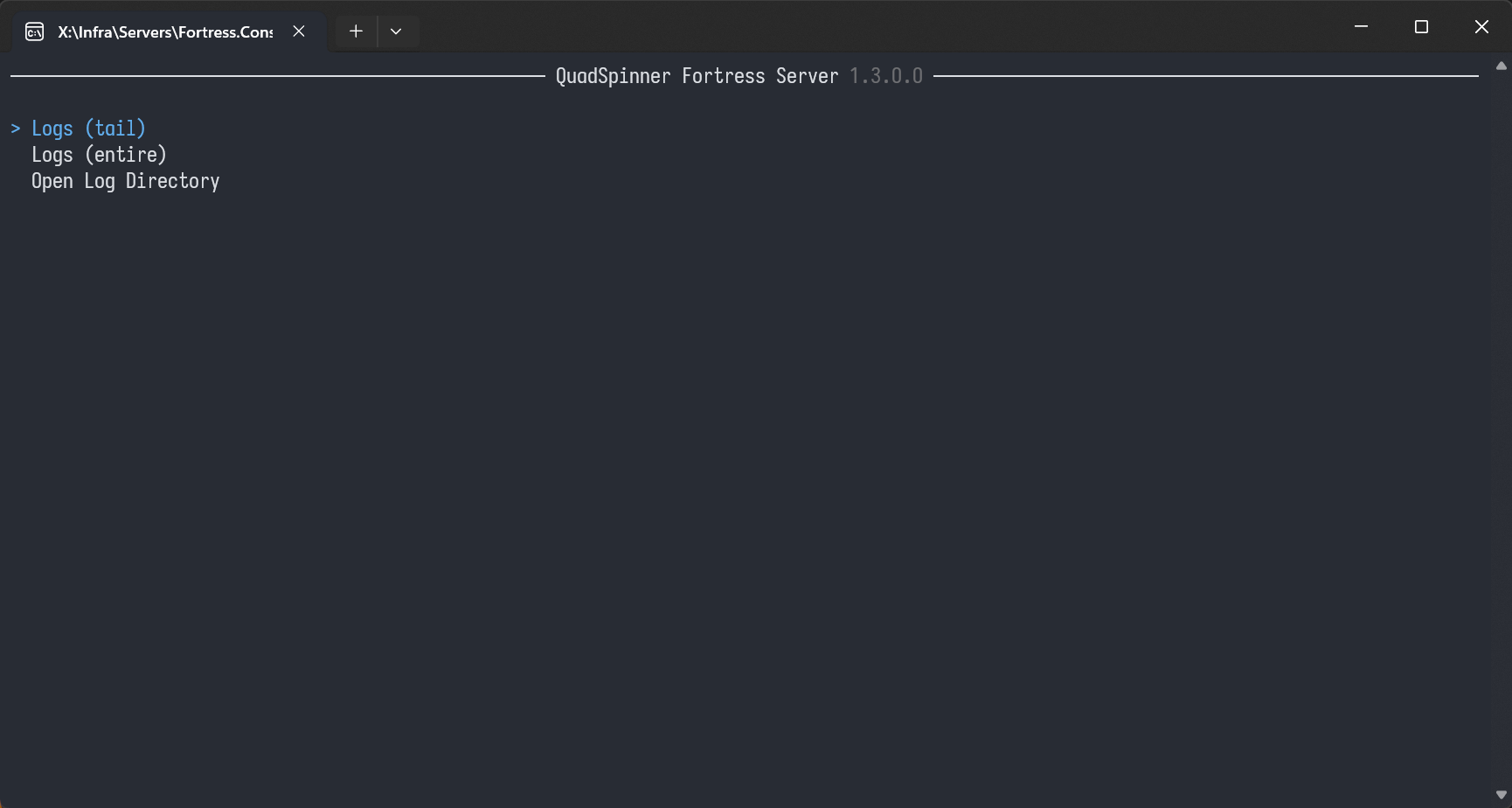
Choose one of the following:
- Logs (Tail): Shows the most recent ~40 entries (quick check for recent errors).
- Logs (Entire): Opens the full log for the current day.
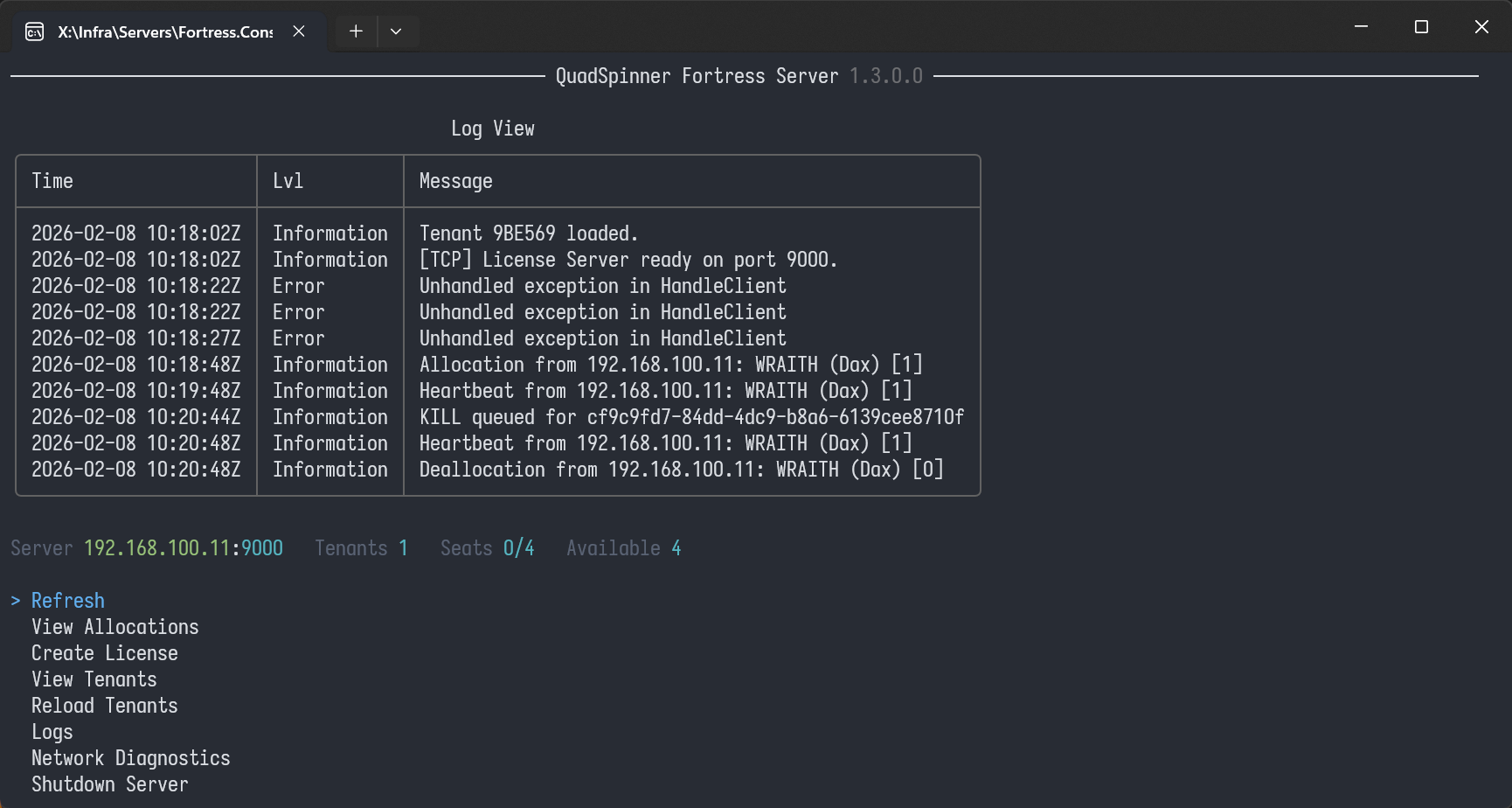
View Older Logs
The console views only the current day’s log. Logs roll over at midnight (local server time).
To access previous days:
Select Open Log Directory.
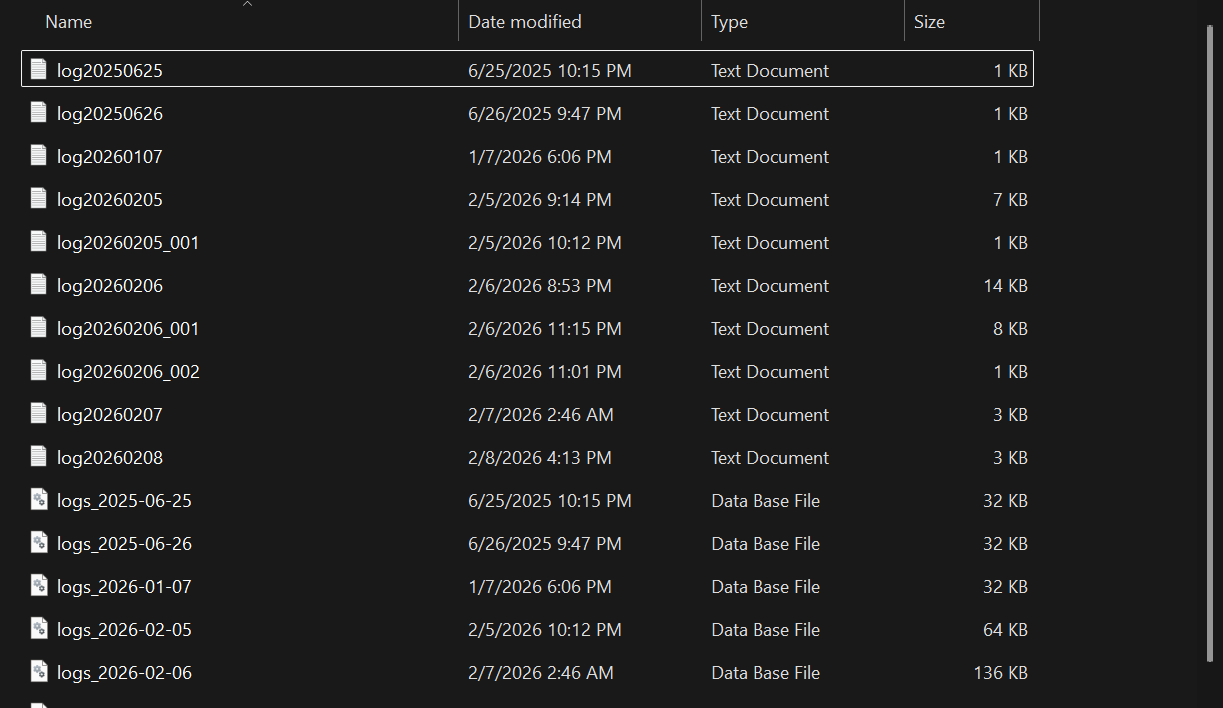
Open the log file for the day you need.
Each day is stored as:
- a plain text log file (human-readable)
- a LiteDB database (structured log store for querying/reporting)
Log Location
Logs are typically stored at:
C:\Users\<user>\AppData\Roaming\QuadSpinner\Fortress\
(Exact location may vary depending on installation context and user profile.)
Data captured in logs
Logs may include operational identifiers needed for troubleshooting, such as:
- Machine names
- Logged-in user name (as seen by the OS)
- IP addresses and endpoints
- Allocation/session events
Logs are intended for diagnostics and do not include sensitive personal content beyond basic system and network identifiers required to operate the licensing service.
 using AngryMonkey