Regions
Regions allows you to take a portion of your terrain and upscale it to a higher resolution. For example, you can take 1/6th of a 8192 x 8192 terrain and upscale the Region to 8192 x 8192 - making it almost 6X times larger in proportional pixel density.
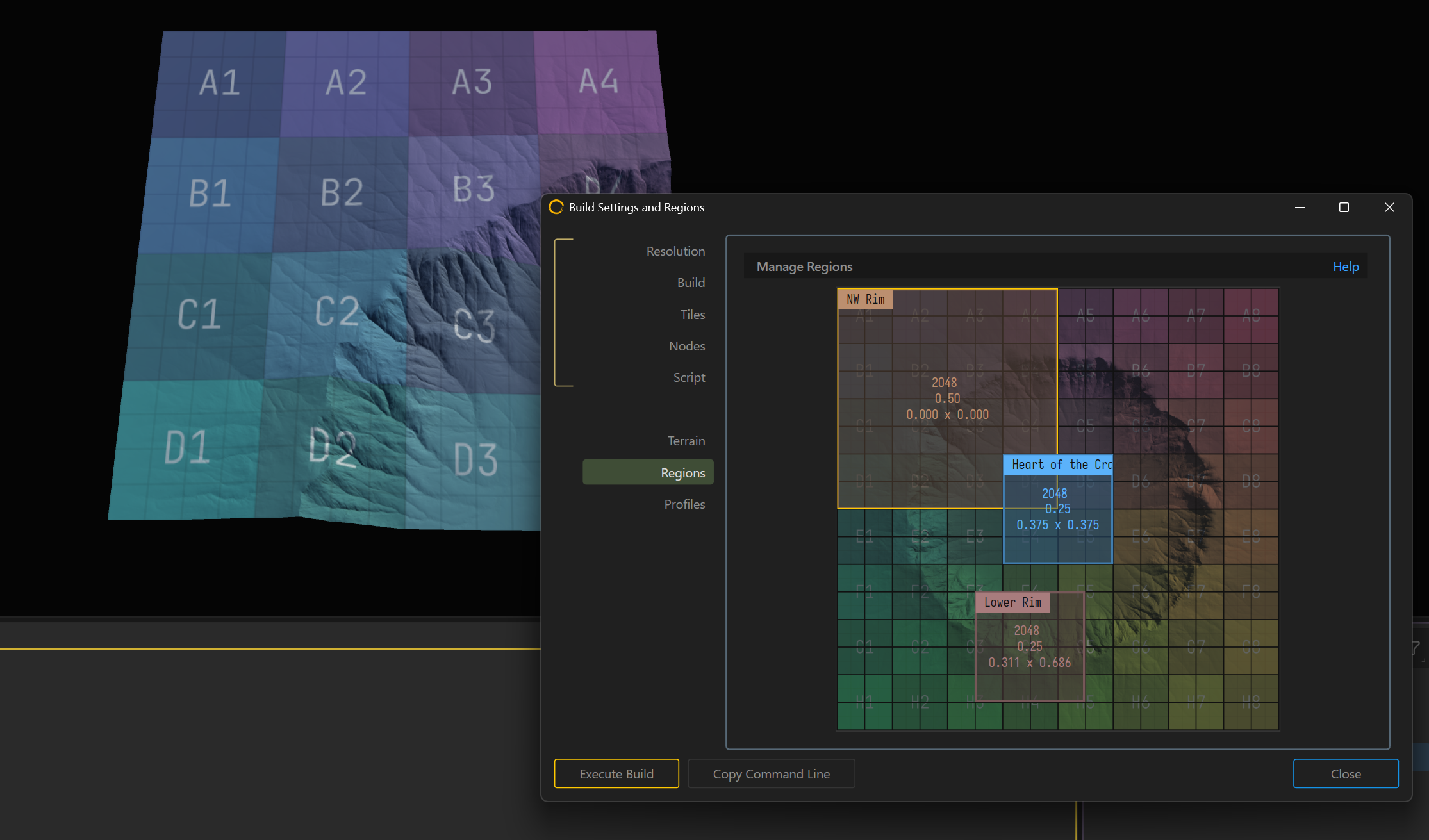
Gaea gives you the ability to preview any individual region. You can have an unlimited number of regions.
This workflow is very helpful in isolating specific areas that may be of higher significance. As both the overall landscape and the isolated Region are both developed through a procedural graph, changing one automatically changes the other keeping both versions in-sync.
How it works
You first create the basic shapes that represent your world, without adding too much detail (See Start with low detail shapes).
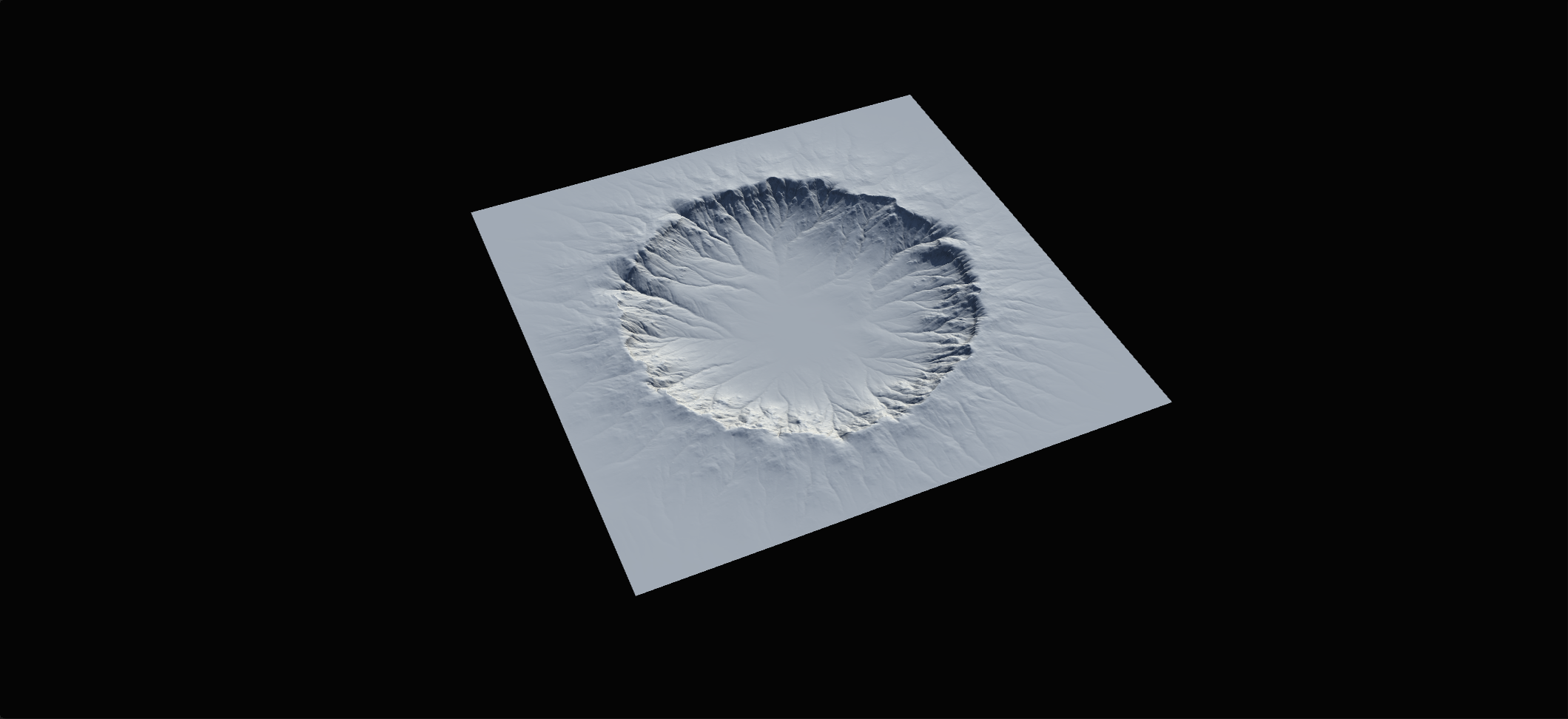
Go to Build Settings > Regions > Right-Click and add a Region. Set the region to the size and position you like.
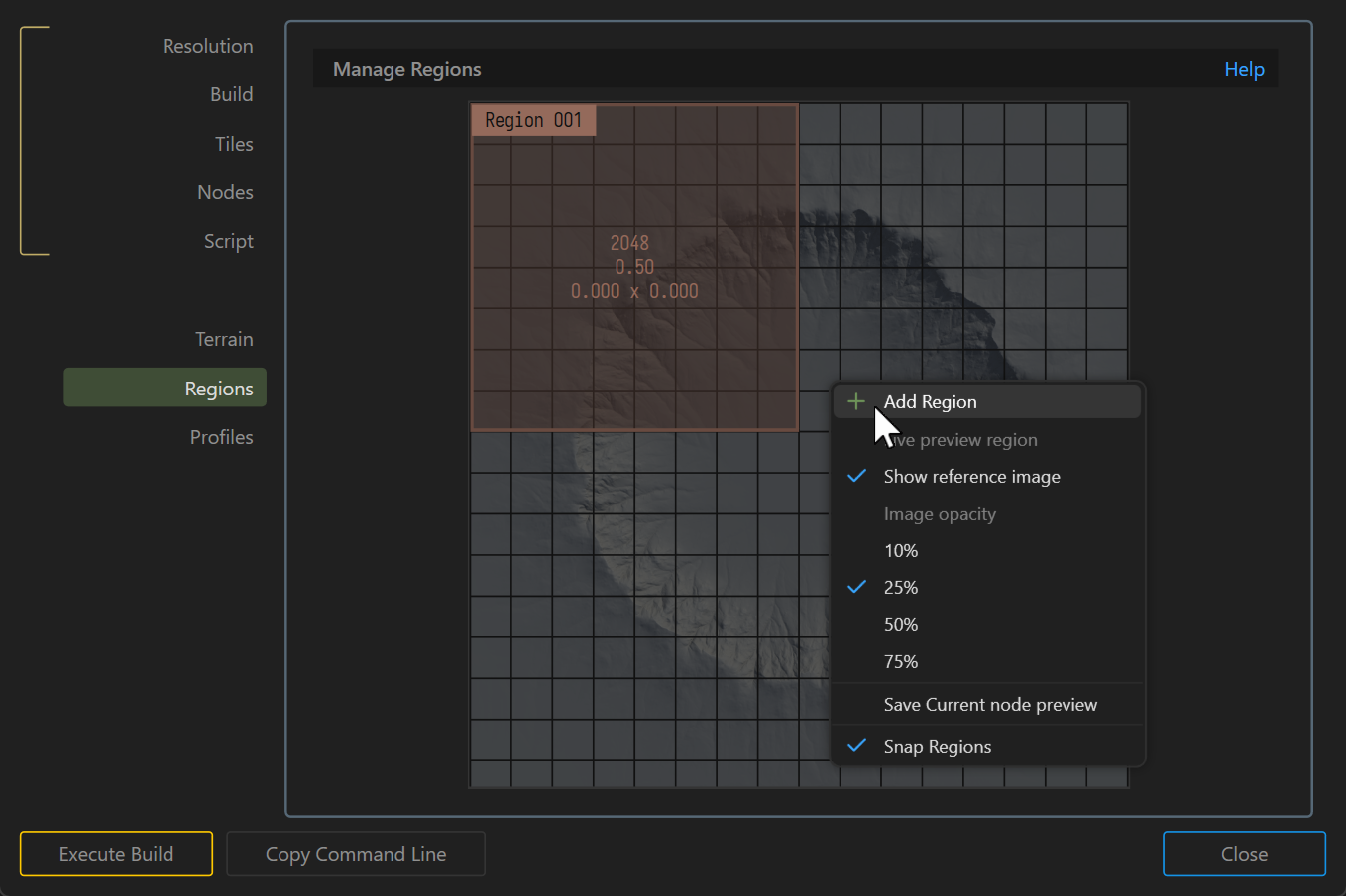
Now when you exit the Build Settings dialog, you will see a new dropdown next to the Preview Resolution Selection. Use it to select a specific region.
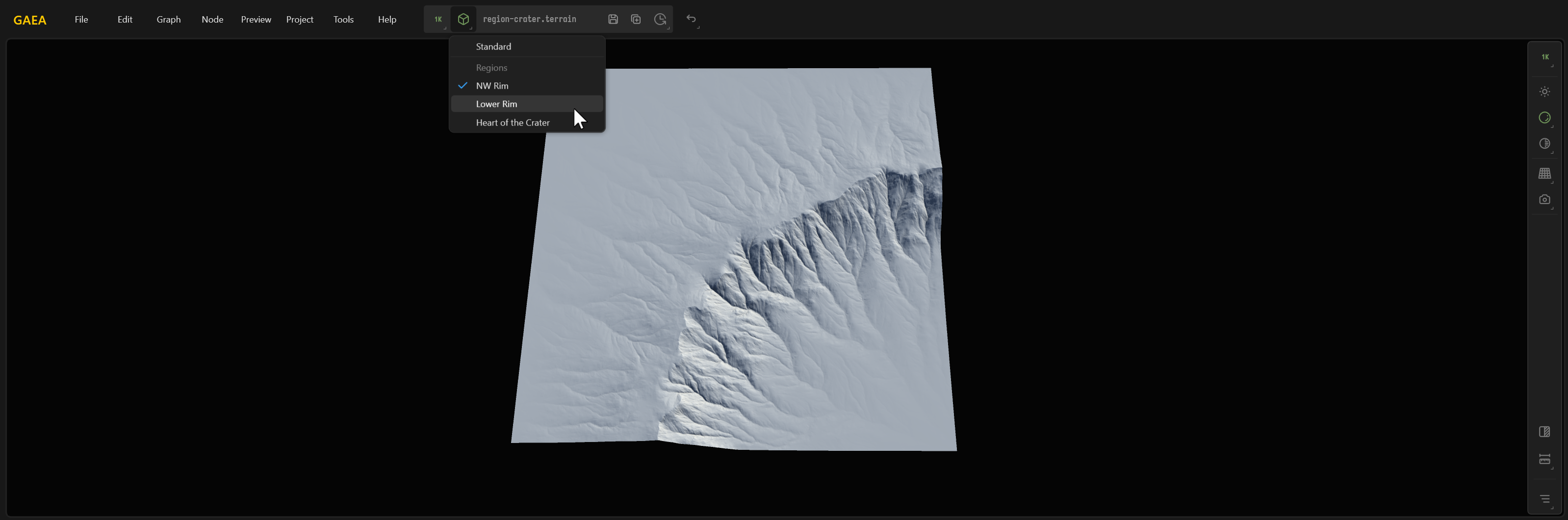
Gaea will now focus specifically on that area and at full resolution.
Basic Workflow
Regions work similarly to Tiled Builds. The initial Generators need to be baked before building or previewing a Region.
If any required nodes are not baked, Gaea will prompt you to bake them. You can always unbake and re-bake them as needed if you want to make any changes to your initial shape.
Using Gates
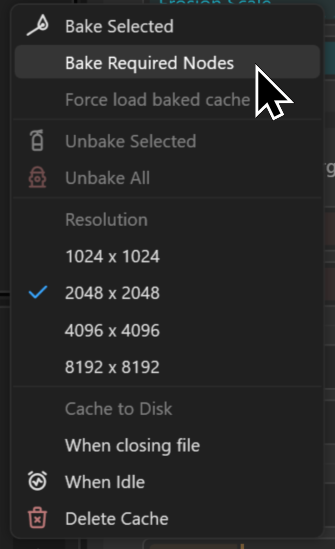
The Gate node lets you quickly bake and unbake necessary nodes. Simply put a Gate node at the end of one or more chain of nodes you need to bake. Then use the Bake Required Nodes command in the Bake menu to bake all Gates. Use Unbake All to unbake the Gates.
Negligible Loss of quality
While it may feel like baking nodes may lead to lower quality, in reality you won't experience any reduction in quality.
The initial shape may be somewhat lower quality depending on the ratio of the Region, but when you apply Erosion or any other procedural simulation or effect, Gaea renders a full resolution result where almost all of the low-resolution detail is replaced by high quality modifications.
Use Minimal Shapes
As mentioned above, most of the smaller detail is generated by Erosion or other simulations and effects. You should avoid adding too much detail in your initial shapes to avoid losing fidelity during the upscaling process.
 using AngryMonkey