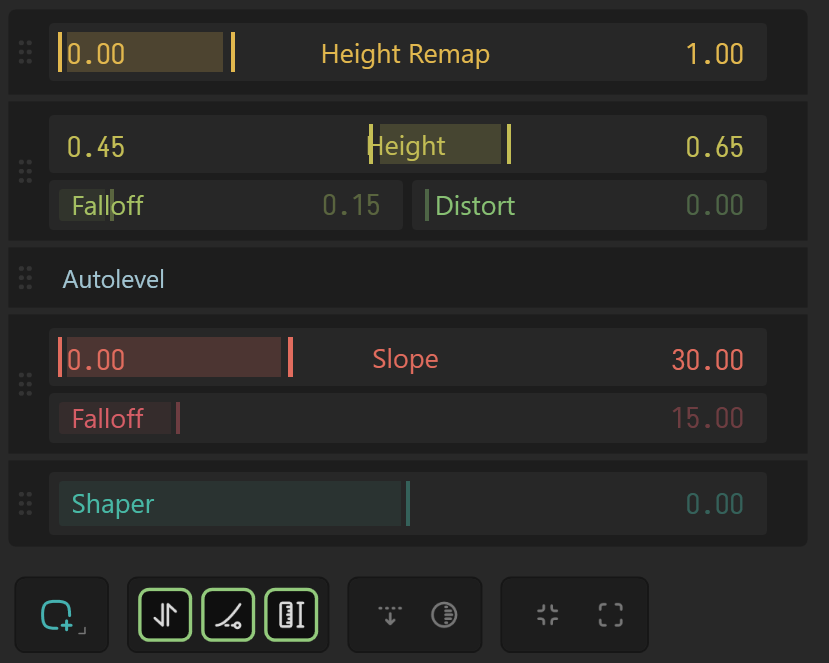
Modifiers
The Modifier Stack provides quick access to common adjustments, masks, and modifications that you may wish to apply to a node. Traditionally, node-based software would require you to create an additional node for each such adjustment - often resulting in complicated graphs that are difficult to manage.
For basic information about Modifiers, see Modifier Stack
Fast and Less Overhead
Modifiers work as a post-process so updating them does not require re-building the node. And unlike nodes, Modifiers don't create excess overhead. The memory cost of 6 modifiers is the same as 1 modifier, however the cost of 6 nodes of the same types would create 6 times the overhead.
Common Scenarios
Adjusting the Height
If a terrain (or mask) is not the exact height values you need, you can use the Height Remap modifier to adjust both the lower and upper extent of your terrain. Bringing up the bottom "raises" the terrain from the bottom, while "lowering" the top makes the terrain shorter.
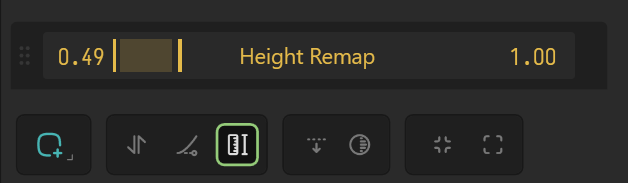
Inversely, bringing the top beyond 1.0 makes your terrain taller than the original range.
Normalizing Imported or Flat Data
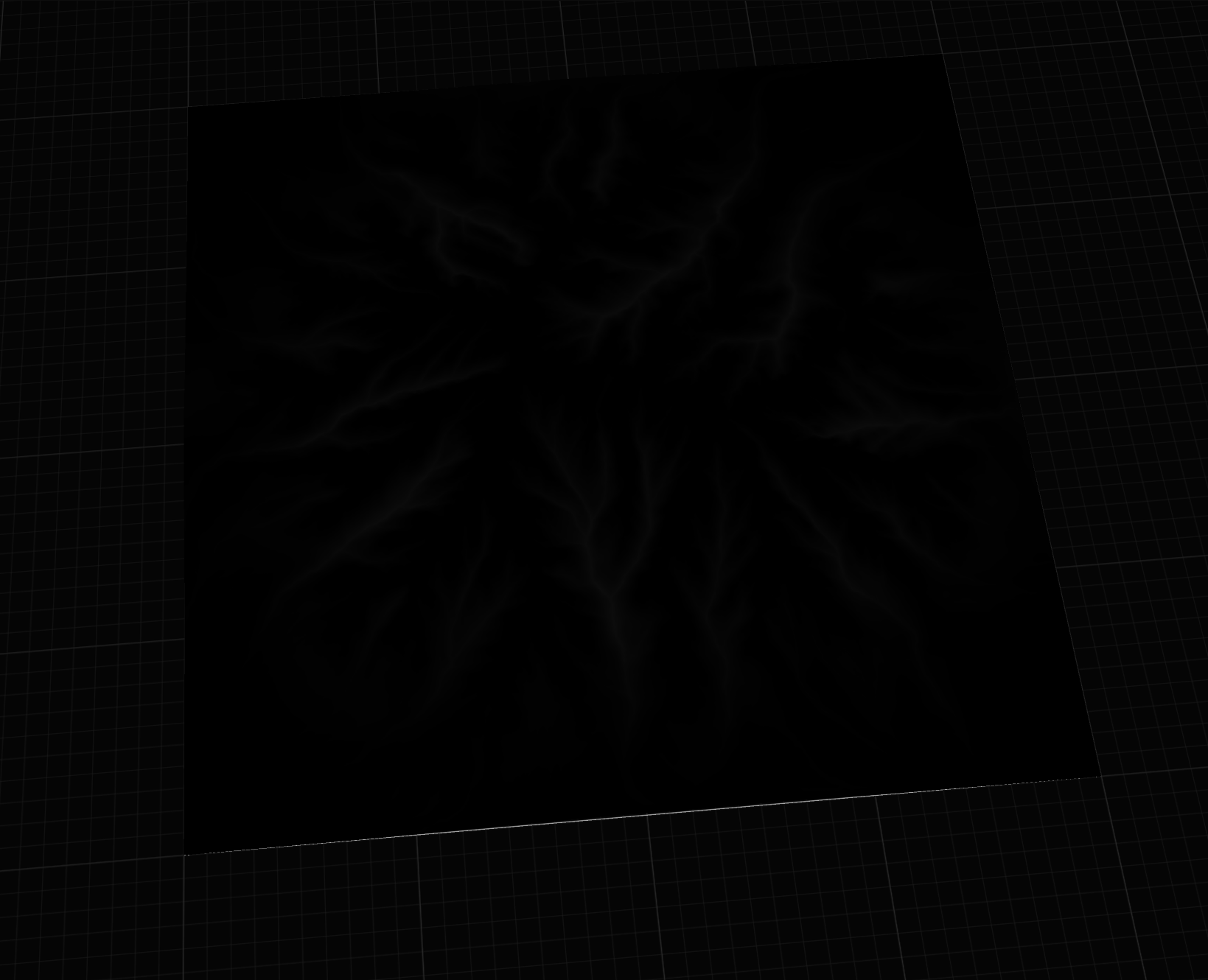
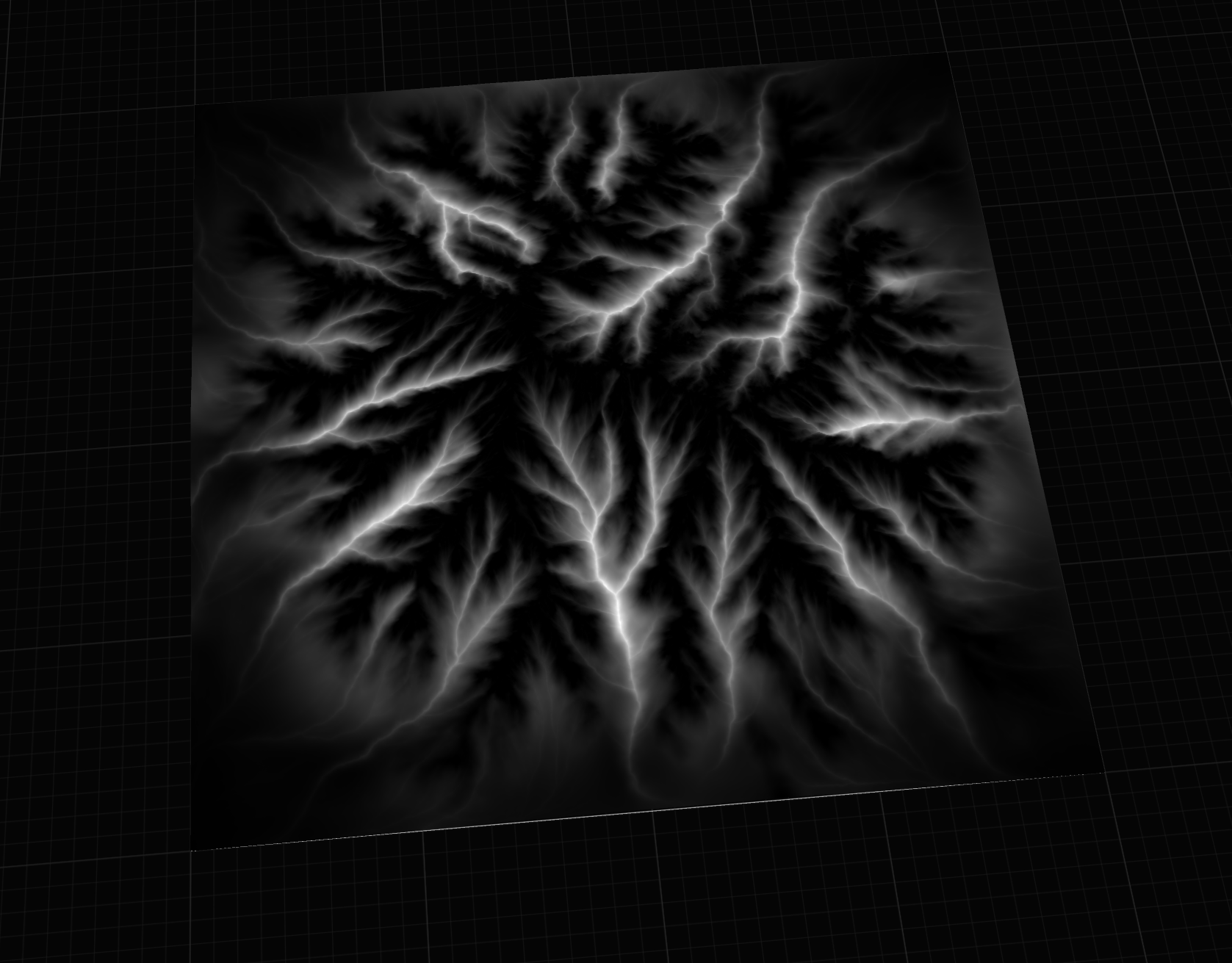
Imported terrains and generated masks may only use a small part of the available height range. Adding an Autolevel modifier is a quick way to stretch the current minimum and maximum values across the full range, making the result easier to read and more useful for later processing.
Use this when the shape is correct but looks too flat, too faint, or difficult to judge in the viewport.
Making Stronger Masks
By simply applying Autolevel, Equalize, or Shaper (positive value) you can take a weak mask and make it stronger.
Keeping Values in Range
After strong shaping, blending, or imported data cleanup, some terrain or mask values may go beyond the range you want. Use Clamp when you need to cap the result without adding another node to the graph.
Clamp is especially useful near the end of a small modifier stack, after Height Remap, Shaper, Autolevel, or Equalize.
Dropping the Terrain
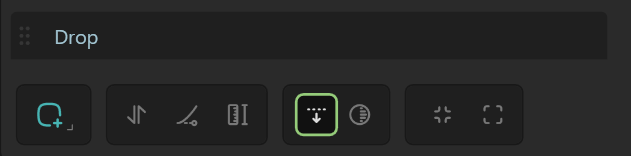
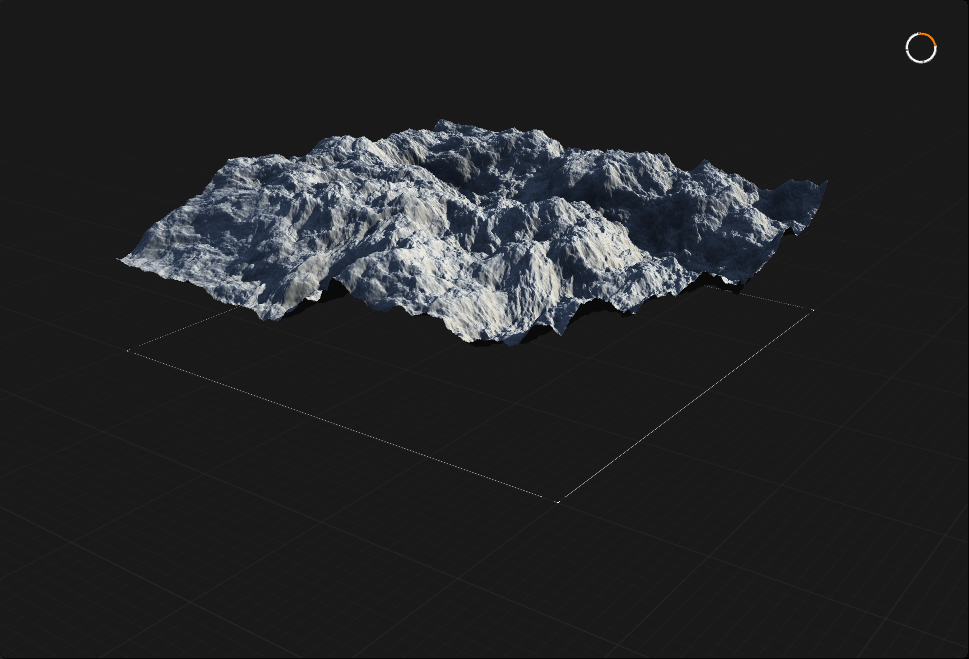
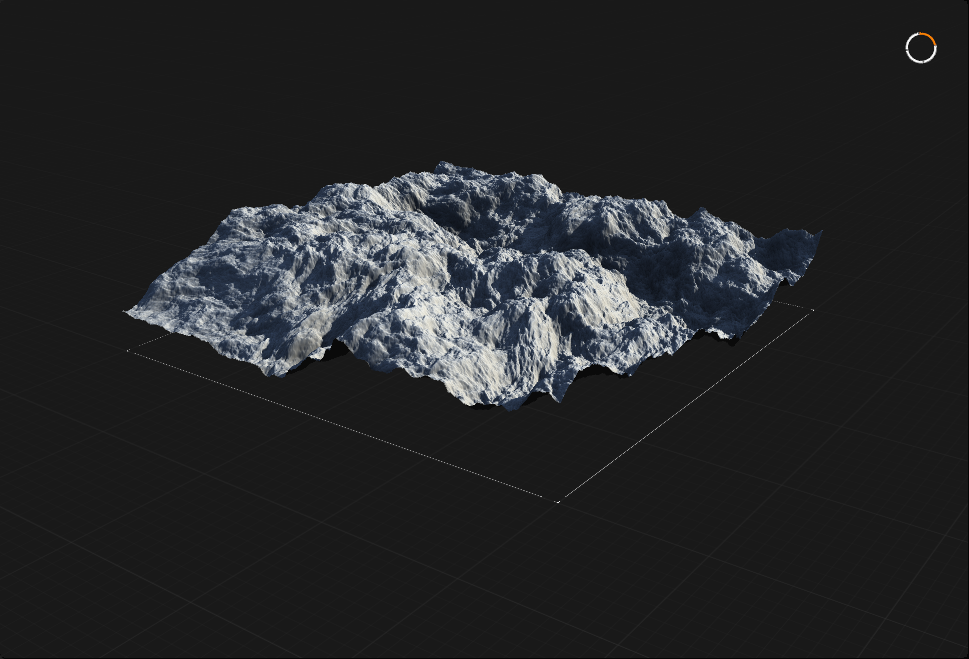
The "Drop" modifier removes any "empty" space under the terrain, forcing it to drop to the "floor".
Bulking Up or Bulking Down
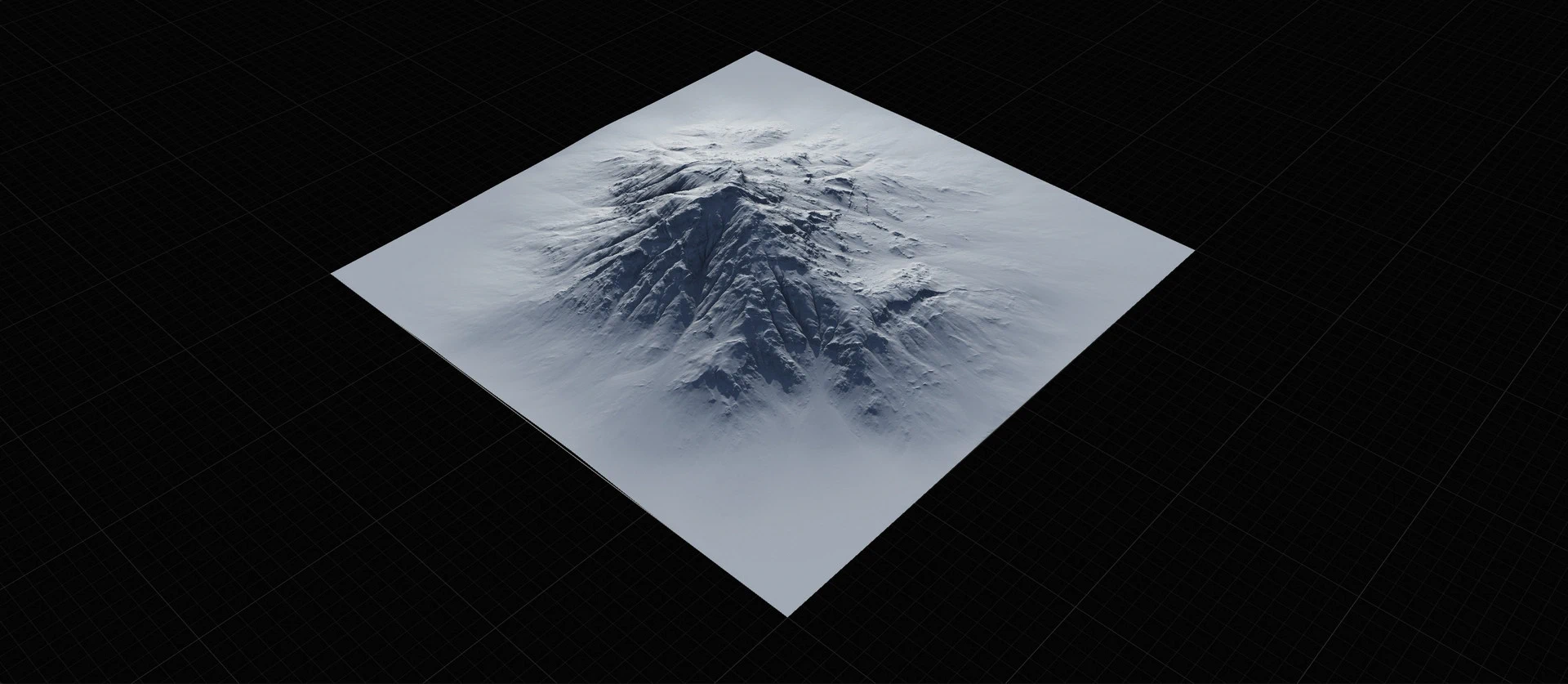
Using Shaper, you can bulk up or bulk down a terrain. It can apply to masks as well. For example, taking Flow Map output and making it stronger by adding Shaper.
Restrict Effect to Slope or Height
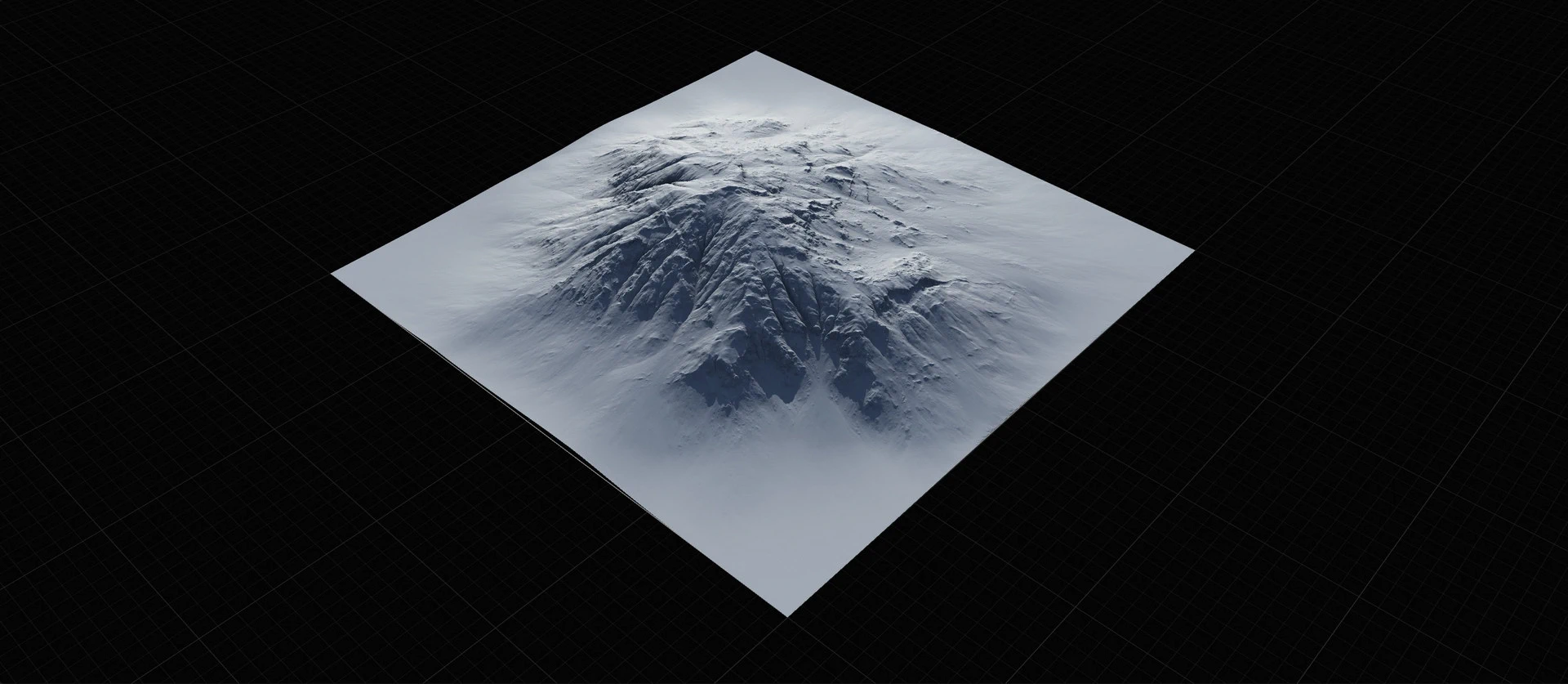
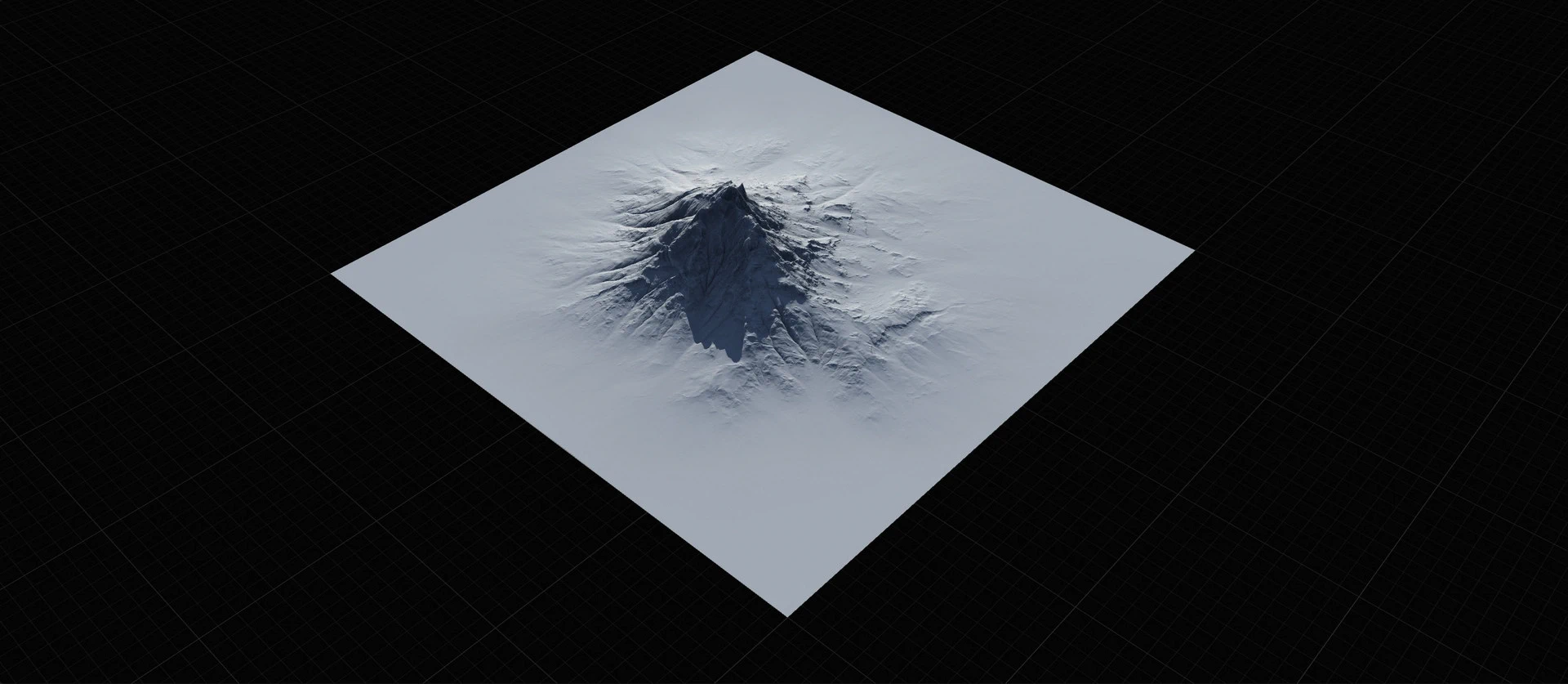
You can easily restrict the effect of a node to a height or slope range by adding a "Mask by Height" or "Mask by Slope" modifier on the effect node.
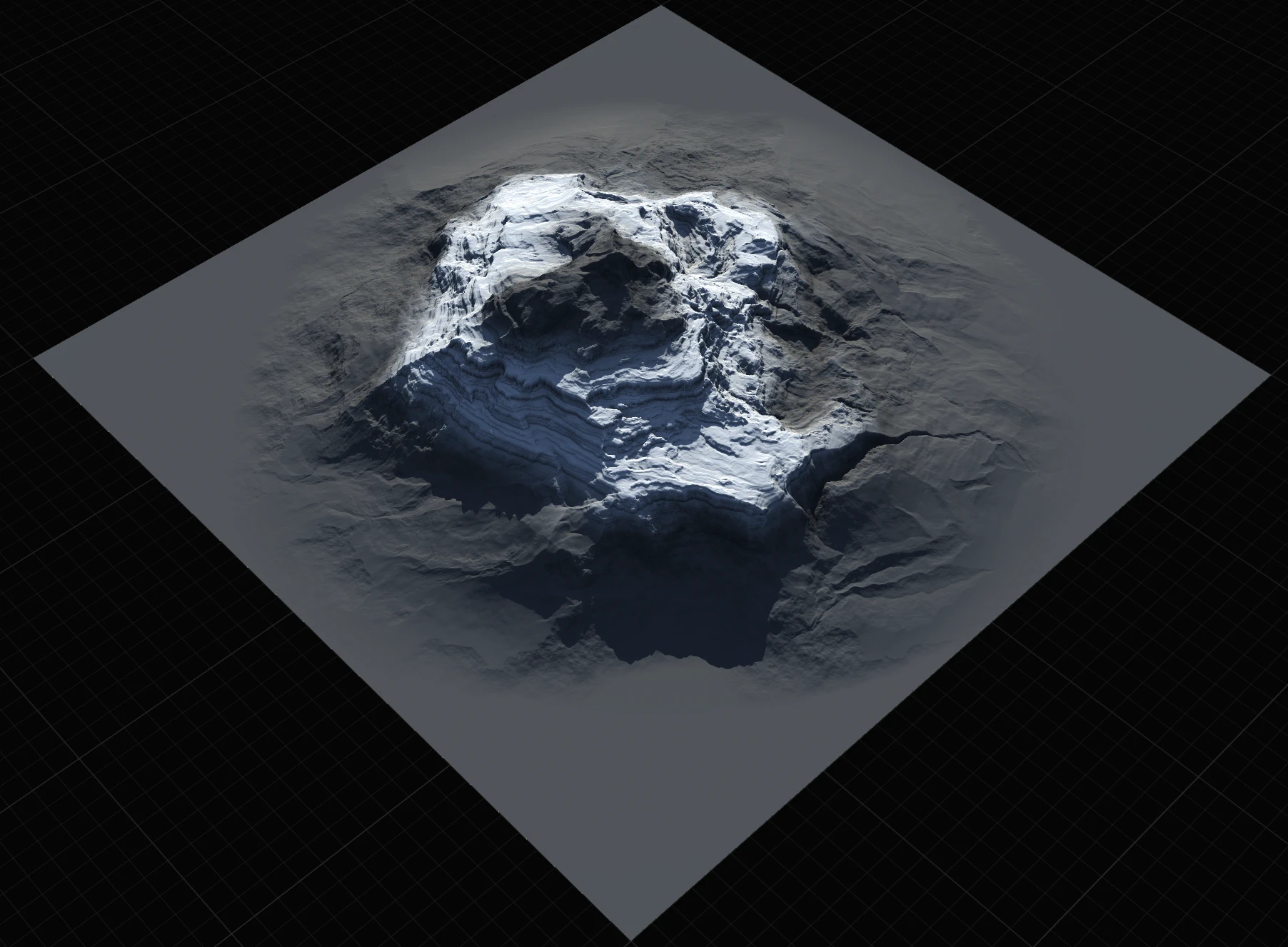
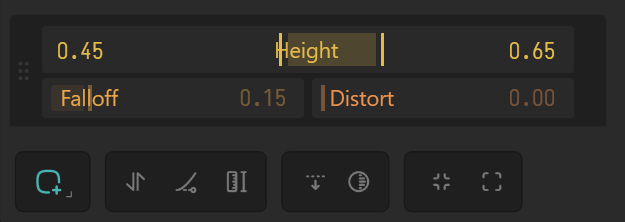
You can attach a DataExtractor node to any node that uses a Mask by Height/Slope modifier, and get the exact mask generated as a separate output.
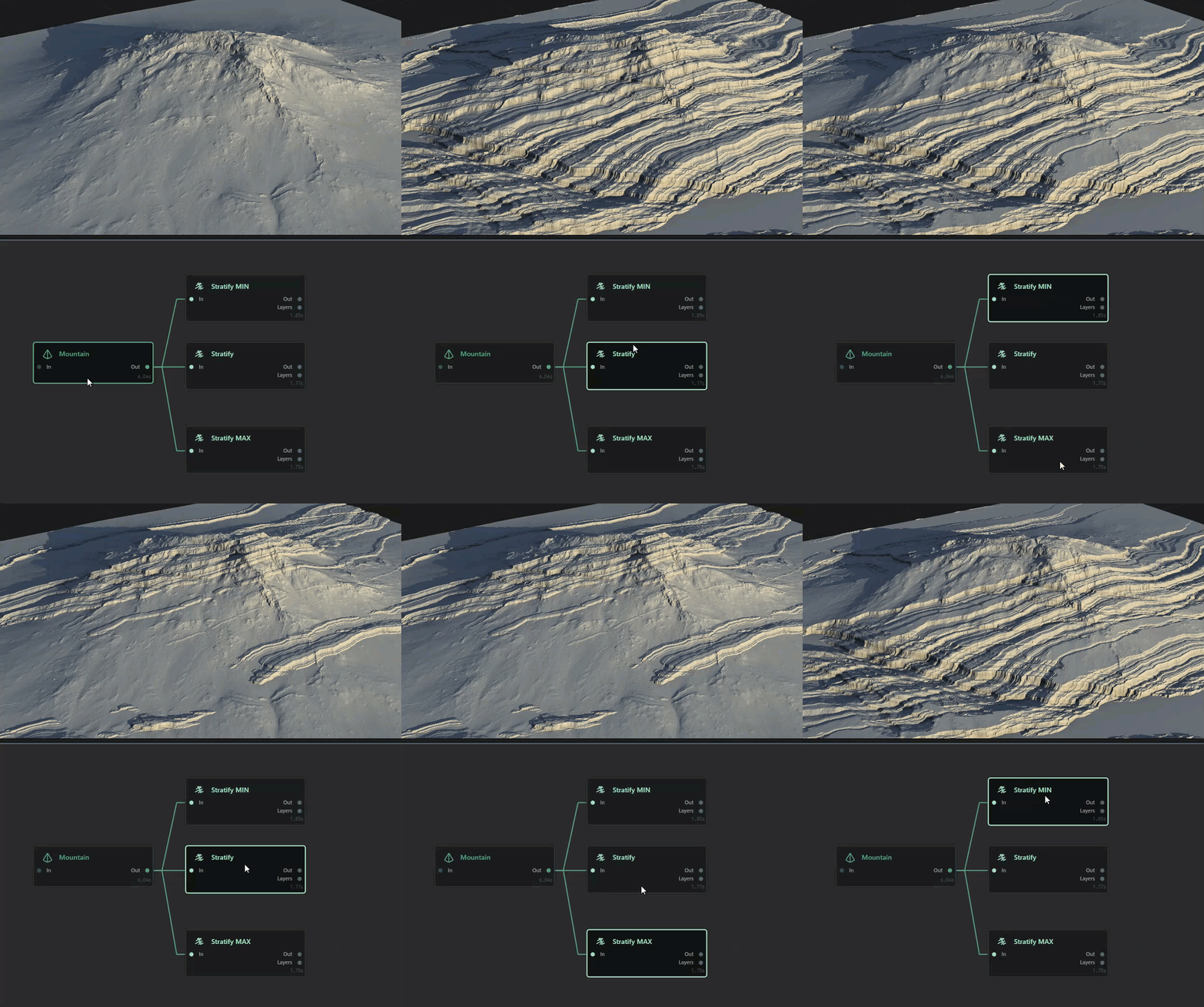
Using Min and Max
The Min and Max modifiers are one of the most powerful tools in Gaea.
Min and Max work like the Min and Max blend modes in Combine, but they compare the node's processed result against the node's original incoming terrain instead of comparing two separate Combine inputs.
Per pixel, Max keeps the areas where the modifier result became higher. Min keeps the areas where the modifier result became lower.
Breaking up a Mask
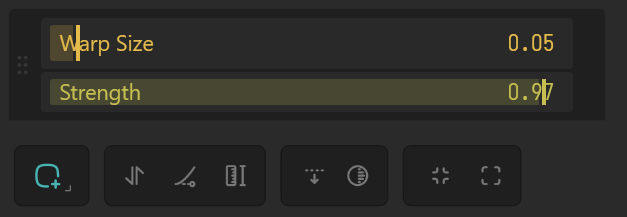
Sometimes you want a bit of crunchy detail to breakup the edges of your mask or introduce some uneven variations. Add a Warp modifier with the appropriate Size and Strength to change the mask.
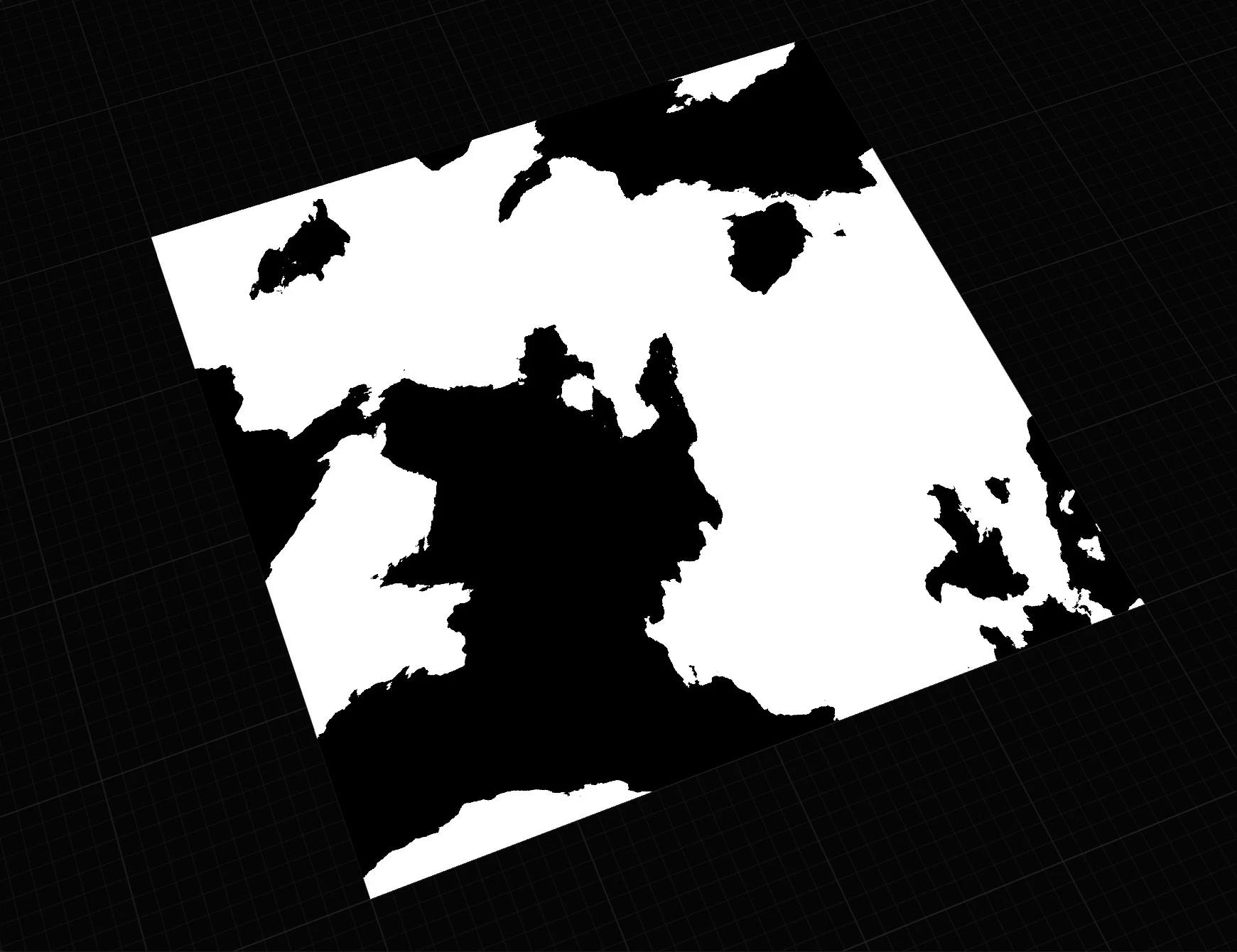
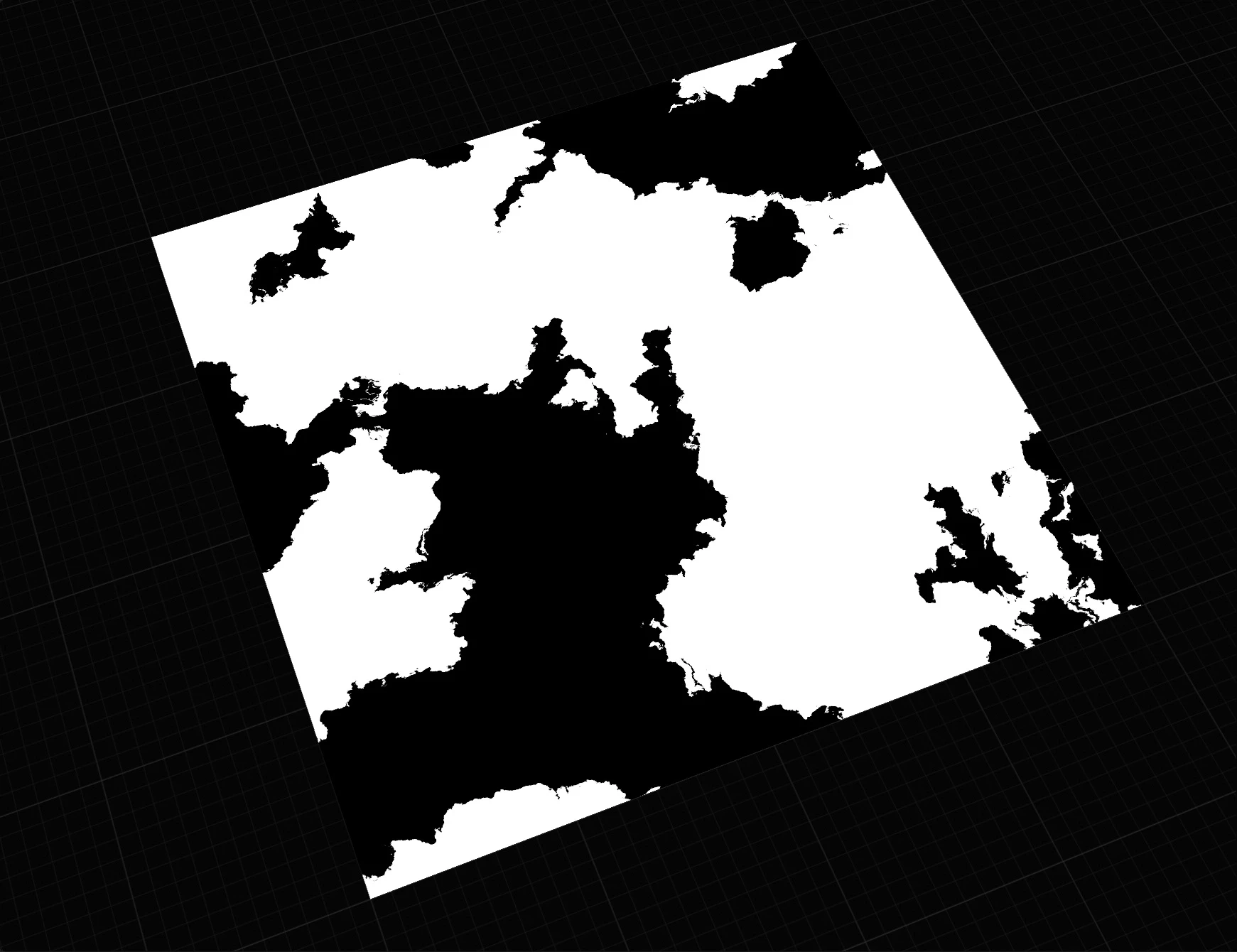
Try mixing with Min or Max modifiers for broader options.
Softening a Mask
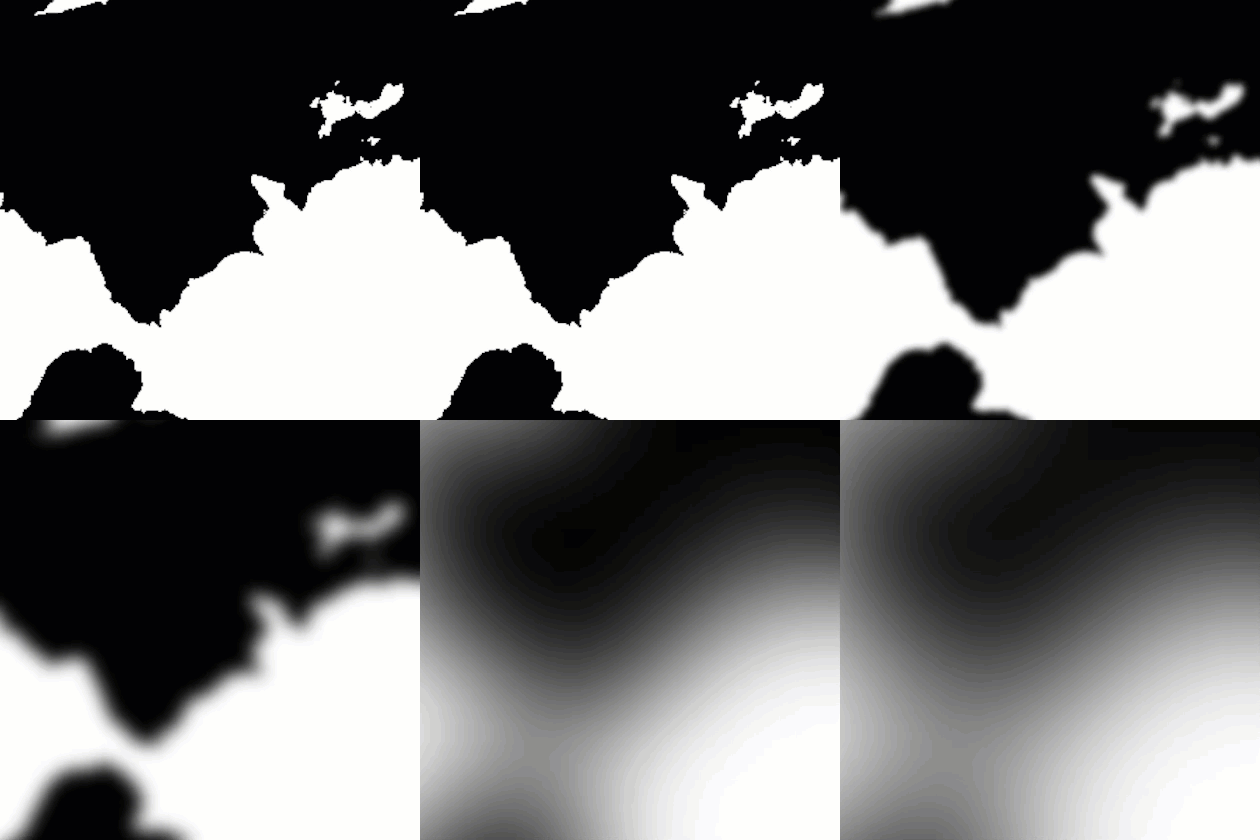
When a mask is too hard or creates obvious cut lines, add a small Blur modifier to soften the transition. This is useful before using the mask to control erosion, texturing, color, or any effect where a sharp boundary would look artificial.
Use only as much blur as needed. Too much blur can make the mask lose the specific area it was meant to isolate.
Preparing Masks for Export
Modifiers are a fast way to do final mask cleanup before export. Autolevel can use the full available range, Clamp can keep values valid, Blur can soften harsh edges, and Threshold can turn a soft mask into a more definite selection.
If the mask has a specific meaning in another application, avoid aggressive Equalize or Autolevel unless you want to change how the values are distributed.
Getting the Difference
Use DataExtractor set to modifer when you need to isolate what a modifier changed. For example, after using Min or Max on an erosion result, DataExtractor can help pull out the difference as a separate mask for routing, layering, or texturing.
This is useful when the modified terrain looks correct, but you also want to reuse the affected areas elsewhere in the graph.
 using AngryMonkey