Installing and Deploying the Fortress Server
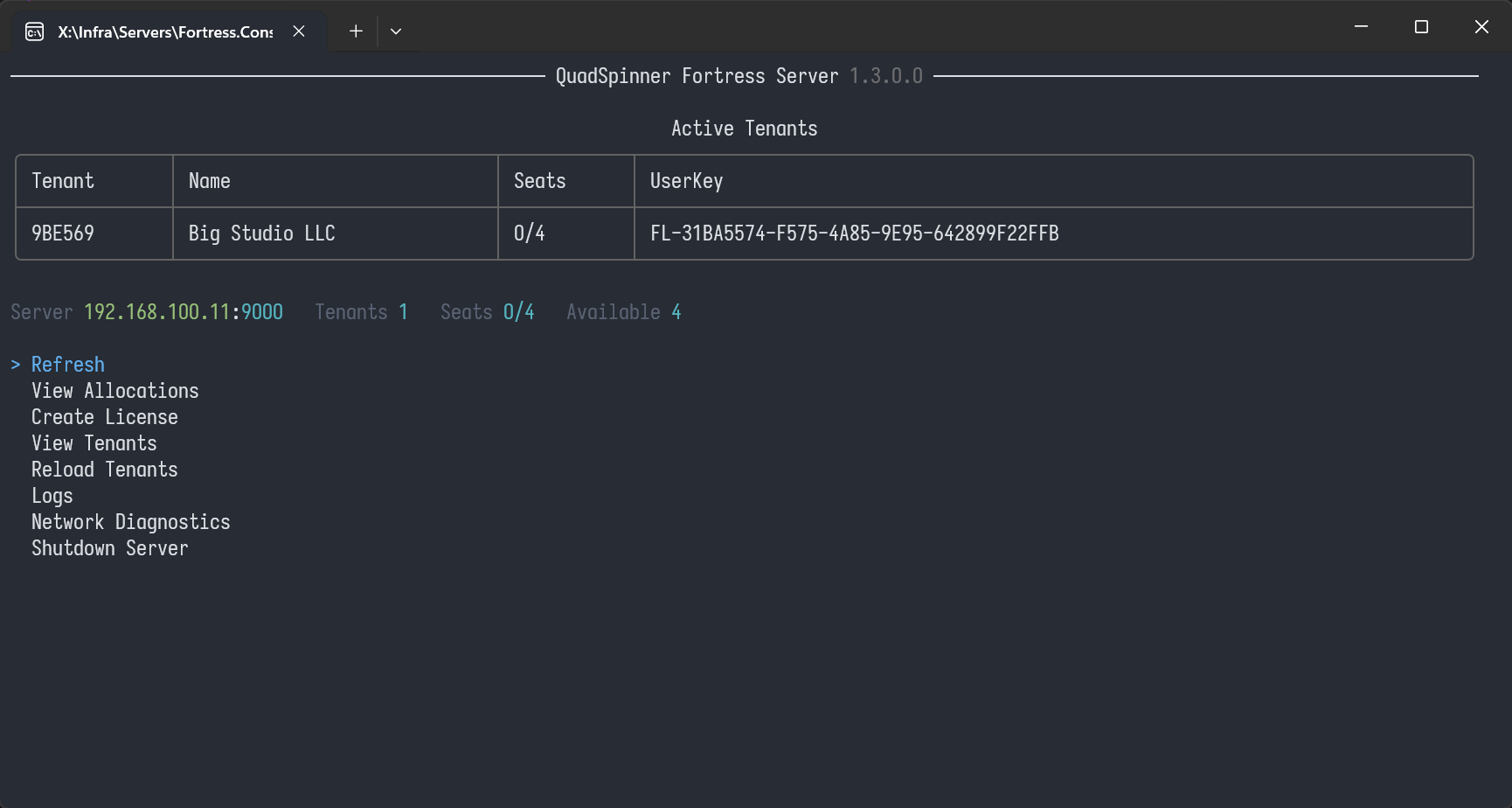
The Fortress Server is very easily to deploy.
Requirements
- Windows 10 or higher.
- 256MB of RAM (exclusive of system resources); 512MB recommended.
- TCP access across the LAN to all workstations that need licensing.
- 100MB Hard Drive space.
You can run this on a Virtual Machine, however the Ethernet/MAC address should not change.
If the configuration is changed too much, a new hardware key + license regeneration may be required.
A Linux version is in-development. There is no specific ETA at the moment.
Setting up the Server
The Server consists of only 3 files:
C:\LicenseServer
├── Tenants\
│   └── 00000000.lic
├── Fortress.Console.exe
└── server.json
Tenants
A Tenant is a master license file that control the number of workstations allowed under a single license. A single Server can host multiple Tenants as long as they are within the same LAN.
You will be provided with a 00000000.lic tenant file upon purchase. The Tenant file is node-locked to your server's Hardware Thumbprint.
Server Configuration
If the server.json is file is not present, Fortress.Console.exe will generate one on first run. By default, it has the following settings.
{
  "Port": 9000,
  "MaxConcurrentClients": 16,
  "TokenIdleTimeoutSeconds": 600,
  "RateLimitPerIPSeconds": 1
}
In most cases, you only need to change the Port setting, if needed. Ensure this port is allowed through firewalls for TCP/IP communication.
Setup Workstations
See Assign Licenses for instructions on creating a license file which can be added to any Gaea installation on the network.
Launch at Startup
The Fortress Server cannot be run as a Windows Service, however you can create a Scheduled Task to ensure that it runs on startup, and recovers in case of a forced reboot, system update, etc.
Create the following PowerShell script. Rename the $exe (full path of the console exe) and $work (working directory) variables, and save the script as startup.ps1 then execute it from PowerShell once. This will setup the task.
$exe  = "C:\LicenseServer\Fortress.Console.exe"
$work = "C:\LicenseServer"

$action  = New-ScheduledTaskAction -Execute $exe -WorkingDirectory $work
$trigger = New-ScheduledTaskTrigger -AtStartup
$settings = New-ScheduledTaskSettingsSet `
  -RestartCount 999 `
  -RestartInterval (New-TimeSpan -Minutes 1) `
  -ExecutionTimeLimit (New-TimeSpan -Days 3650) `
  -MultipleInstances IgnoreNew `
  -StartWhenAvailable

Register-ScheduledTask `
  -TaskName "LicenseServer" `
  -Action $action `
  -Trigger $trigger `
  -Settings $settings `
  -User "SYSTEM" `
  -RunLevel Highest `
  -Force
It is recommended that you do not run the server as Admin unless absolutely required.
Troubleshooting checklist
- Client cannot obtain a license
- Verify
floating.licis present in the correct data folder. - Confirm the host/IP and port are correct.
- Run Network Diagnostics on the server.
- Verify
- Server reachable by
localhostbut not by NIC IP- Server is likely bound to loopback only.
- Bind to
0.0.0.0or the correct NIC address.
- Clients intermittently lose licenses
- Check for firewall/AV interference, unstable VPN, or routing issues.
- Confirm server clock stability and network reliability.
 using AngryMonkey